
DailyBuddy features
A closer look at each feature. Screenshots use sample data.
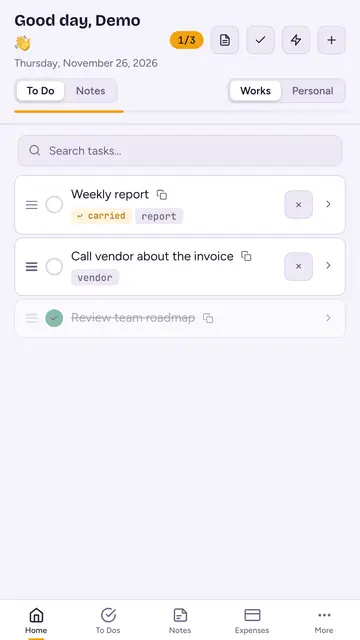
Daily to-dos
Plan your day and split tasks into Works and Personal.
Unfinished tasks are carried over to the next day automatically.
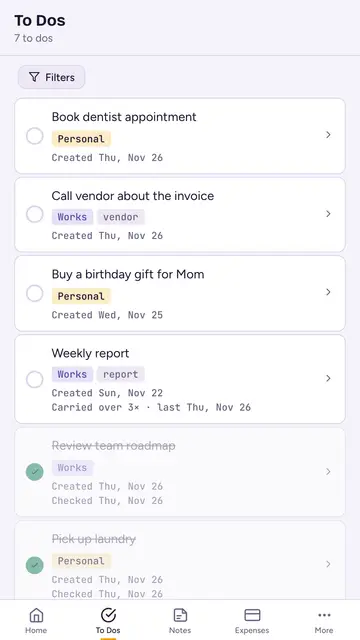
The To Dos history page shows every to-do once, with how many times it was carried over and when it was finally done.
Notes
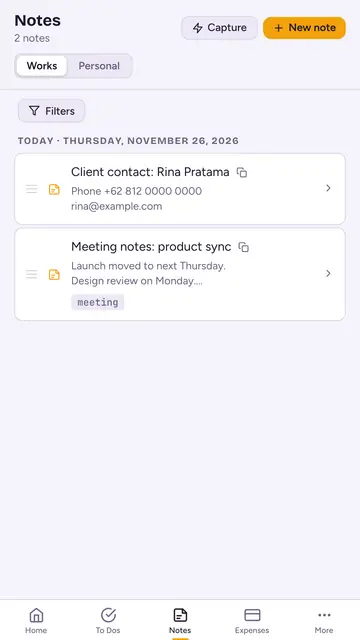
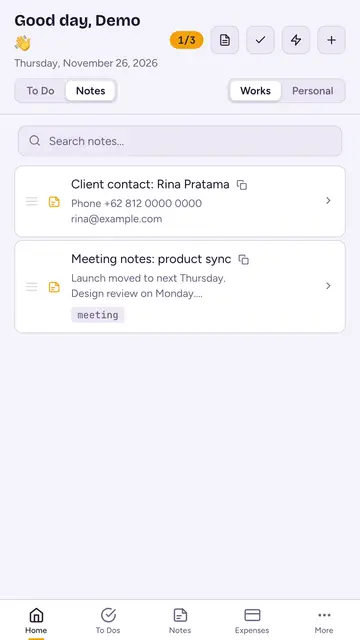
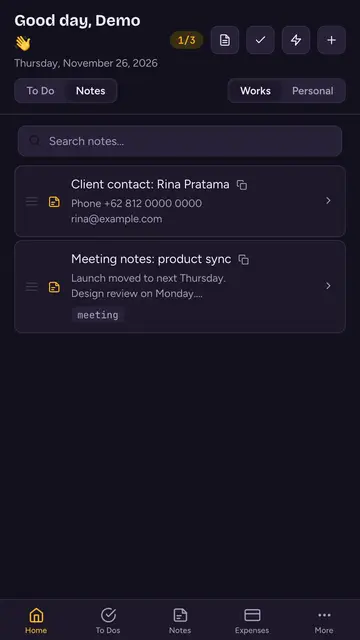
Jot down meeting notes, ideas or a business card photo.
Add #tags to find things later, and link a note to a to-do.
Expense lists
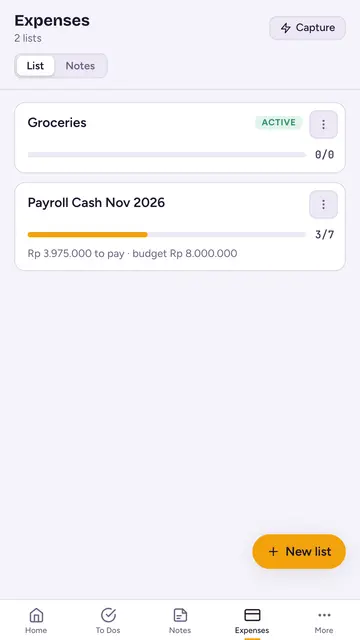
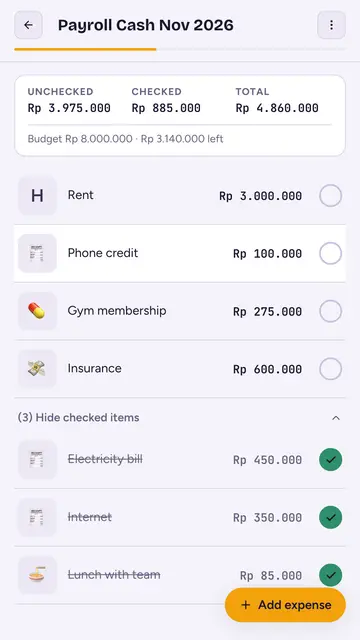
Make a list after each payroll, add everything you have to pay, and set a budget.
Tick items off as you pay them. What is left is visible at a glance.
Bill reminders
The app sends a notification around 09:00, three days before a monthly bill is due.
The lock screen never shows names or amounts.
Photos on every record
Attach up to 10 photos to any record.
Photos live only inside the app and never appear in your phone gallery.
Private by design
Every database has its own name, 4-digit PIN and recovery code. Keep several (for example Main and Testing); they never mix.
The database is encrypted on your phone. Unlock with your PIN or your fingerprint, and choose when the app auto-locks.
No analytics, no tracking, no ads.
Optional AI, your own key
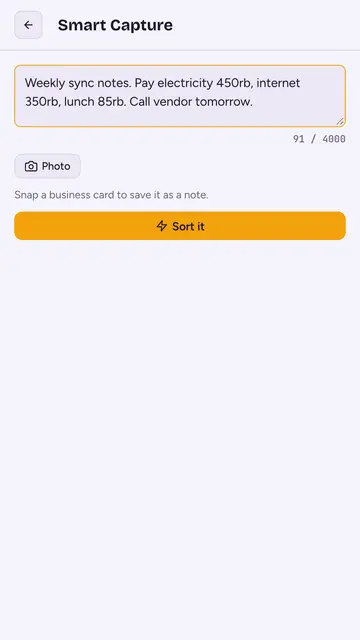
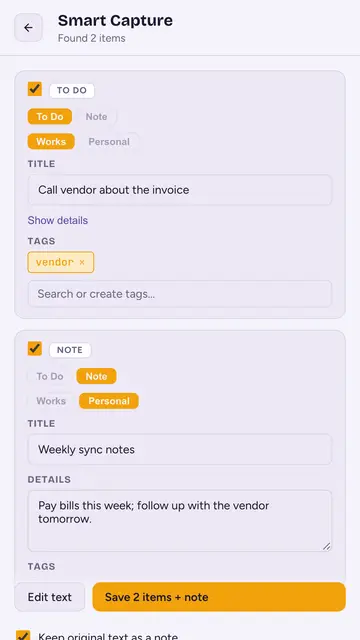
Smart Capture turns typed text or a photo (receipt, business card) into to-dos, notes and expenses. A daily reflection and an expense list review are also available.
AI is off until you add your own API key (for example Google Gemini). Your phone then talks directly to the provider you chose; nothing goes through our servers, because we have none. Everything else works fully offline.
Desktop Access (optional)
Switch on Desktop Access and use DailyBuddy from your laptop’s browser on the same WiFi.
Your data stays on the phone; nothing is stored on the laptop. It is off every time the app starts and needs your PIN.
Backup and restore
Export one database to a password-protected file and keep it in Google Drive or anywhere you like.
Uninstalling the app deletes all data, so a backup is your safety net.
Light and dark themes
The app has a light theme and a dark theme.
Coming soon on Google Play